
Your connected apps, in one AI workspace.
An AI assistant is more useful when it can work with the information you already keep in your tools. QueueAI connectors bring selected app context into the conversation. Each connector has its own capabilities and permissions.
Compare plans and connector access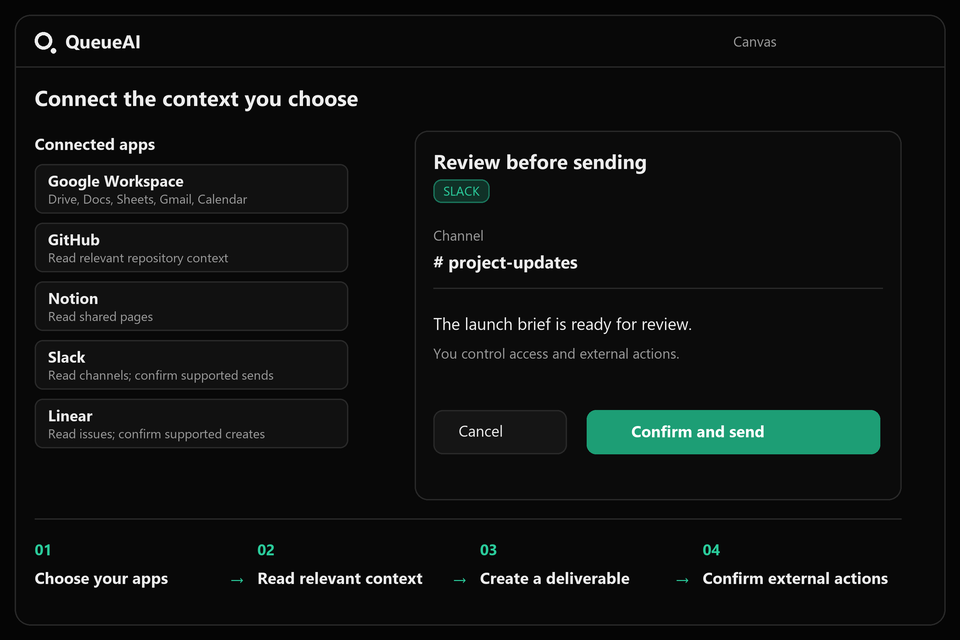
What each connector supports
Google Workspace
Find and read Drive files; work with supported Docs, Sheets, Gmail, and Calendar tools. Operations depend on granted permissions.
GitHub
Read repository context on Builder or Pro. Supported write operations require Pro and appropriate repository permissions.
Notion
Search and read pages shared with the integration. Creating or editing Notion pages is not currently supported.

Slack
List available channels and read recent messages. Review supported message sends before confirming.

Linear
Read teams and issues. Review the team, title, and details before confirming a supported issue creation.
Connect the account that holds your context
- Choose a connector in the Apps or Connectors tab on Builder or Pro.
- Authorize the relevant account or workspace through the provider. Share only the resources needed for your work.
- Enable connector access in QueueAI and start with a specific read request.
- Review supported external actions before confirming them. Disable connector access when you no longer need it.
Use more than one source with a clear objective
For a launch brief, a Google Drive document might contain the requirements while GitHub supplies implementation context. For an issue draft, Linear provides the team and existing issues. Tell QueueAI which sources matter and what you want to produce; connecting an app alone does not mean every resource has been read.
Notion access is limited to pages shared with the integration. Slack channel visibility and GitHub repository access depend on the permissions of the connected account. If a source is missing, check the provider permissions and whether connector access is enabled.
Review writes separately from reading context
Reading a page and posting a message are different capabilities. QueueAI can prepare a Slack message or Linear issue using the available context, then present supported actions for your review. Confirm the channel or team, destination, and text before execution.
The Notion connector currently searches and reads shared pages. It does not create or edit Notion pages. For a Notion-related writing task, create a draft in Canvas and transfer it to Notion yourself.
Keep app access aligned with the task
Disable a connector when you want it excluded from the assistant input. Disconnect it when you want to remove the connection from QueueAI. You can also review or revoke the integration through the provider itself.
Explorer does not include connectors. Builder and Pro offer connected workflows; GitHub write operations require Pro. Consult the pricing page for current quotas and plan details.
Try this prompt
Read my shared Notion launch notes and list the unresolved decisions. Draft a concise project update in Canvas for #product-updates in Slack. Let me review the message before sending anything.
Your prompt opens in the workspace after sign-in. Connectors require Builder or Pro. Nothing is sent to an external app from this page.
Before you use the result
- Verify which account, workspace, and resources are connected.
- Check that source facts are reflected accurately.
- Confirm the destination and message before an external action.
Common questions
Which apps can I connect?
Google Workspace, GitHub, Notion, Slack, and Linear are supported on Builder and Pro. Specific operations and visibility depend on the connector and account permissions.
Can QueueAI write to Notion?
The current Notion connector is read-only: it searches and reads pages shared with the integration. You can prepare a document in Canvas to copy into Notion manually.
Can I disable access without deleting the connection?
Yes. Connector access controls let you disable a connected app. Disabled connectors are excluded from the assistant input.
Explore another workflow
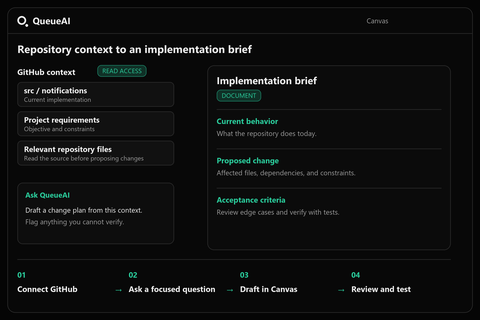
Use repository context to work through requirements, code, and architecture.
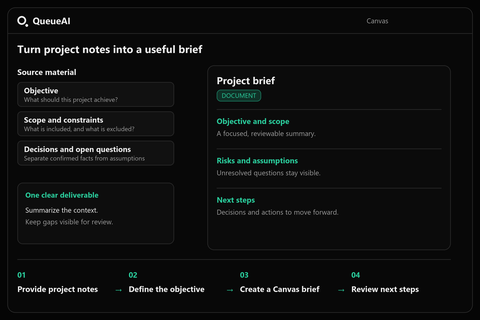
Build a reviewable brief with objectives, scope, risks, and next steps.
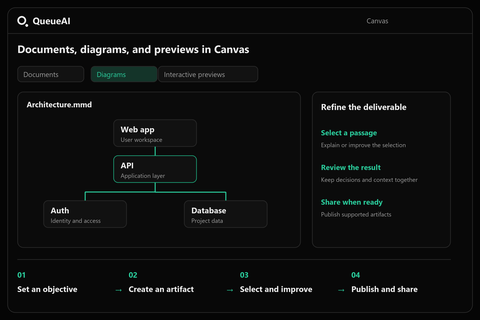
Take a conversation into Canvas and refine the deliverable.