
Turn project notes into a brief you can review.
A useful project brief makes decisions visible. QueueAI can help organize notes into an editable document, but the quality of the result depends on the source material and your review. This workflow shows what to provide, what to ask for, and what to check.
Compare plans and connector access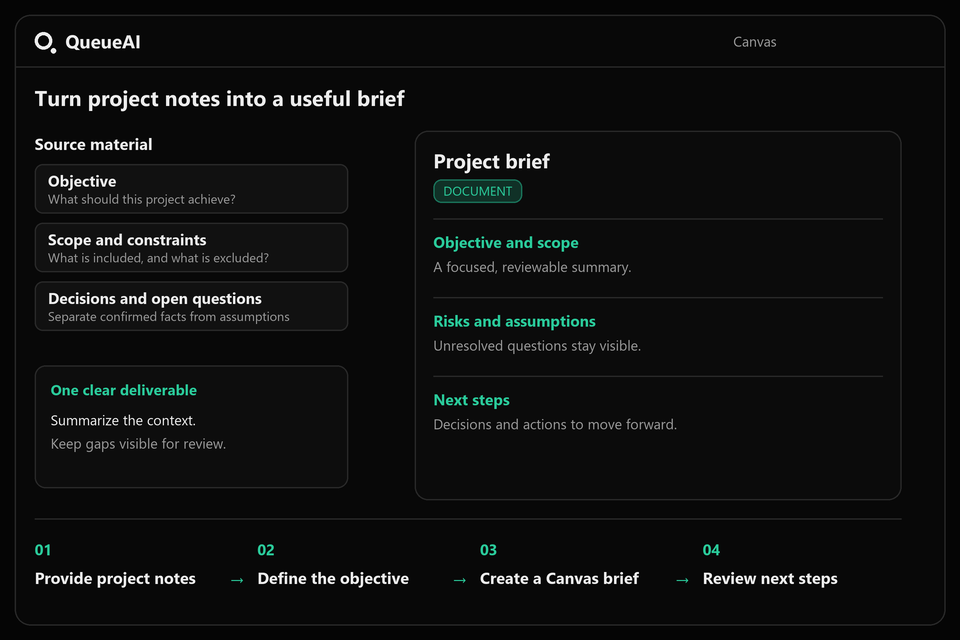
Prepare the source material
Start with the objective, intended audience, current problem, known constraints, and decisions already made. Include deadlines only when they are real. If the notes live in Google Workspace or a shared Notion page, use the relevant connector on a paid plan. Otherwise, provide the context directly in chat.
Distinguish confirmed facts from suggestions. For example, a proposed launch date is not the same as an approved deadline. Ask QueueAI to mark gaps and assumptions so they remain visible in the brief.
Build the first draft in four steps
- Gather the notes and identify the exact project or launch you are planning.
- Ask for objectives, scope, deliverables, risks, open questions, and acceptance criteria.
- Open the document in Canvas and revise any section that adds unsupported assumptions.
- Review the brief with the people responsible for the work, then export or share the final document through your chosen workflow.
A project brief outline you can reuse
- Objective
- What problem are we solving, and what would a successful result look like?
- Scope
- What work is included? What remains outside this project?
- Deliverables
- Which documents, interfaces, or changes must be produced?
- Constraints and risks
- Which dependencies, permissions, deadlines, or uncertainties affect the work?
- Acceptance criteria
- How will someone verify that the result meets the objective?
- Open questions and next steps
- Which decisions are still needed, and what happens next?
Adapt the brief to a product launch or PRD
For a launch brief, add the audience, positioning, launch assets, communication channels, and release dependencies. For a product requirements document, add user behavior, functional requirements, edge cases, and measurable acceptance criteria. Keep the sections that help the actual project; a longer document is not automatically a better brief.
The example prompt below requests a draft, not an approved plan. Canvas lets you refine the result before using it. If a stakeholder, metric, or date is missing from the notes, keep it as an open question instead of inventing it.
Try this prompt
Turn these project notes into a launch brief in Canvas. Include the objective, audience, scope, deliverables, dependencies, risks, acceptance criteria, and next steps. Separate confirmed facts from assumptions. Do not invent owners, dates, or metrics; list missing details as open questions.
Your prompt opens in the workspace after sign-in. Connectors require Builder or Pro. Nothing is sent to an external app from this page.
Before you use the result
- Check dates, owners, and requirements against the original notes.
- Remove invented facts and resolve important open questions.
- Make each acceptance criterion specific enough to verify.
Common questions
Can I generate a project brief for free?
You can draft from context supplied in chat on Explorer, within its request and Canvas limits. Connected apps require Builder or Pro.
Can I use a Notion page as the source?
Yes, if you connect Notion and share the page with the integration. The connector reads the page; the brief is drafted in QueueAI, not written back into Notion.
Is the generated brief ready to publish?
Review it first. Verify source facts, scope, assumptions, and acceptance criteria before treating the draft as an approved project document.
Explore another workflow
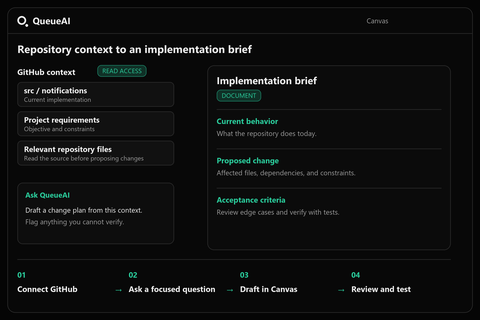
Use repository context to work through requirements, code, and architecture.
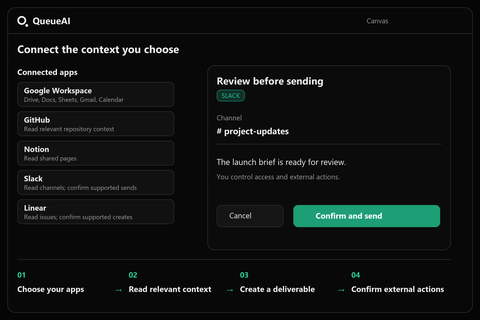
Understand what Google Workspace, GitHub, Notion, Slack, and Linear can do.
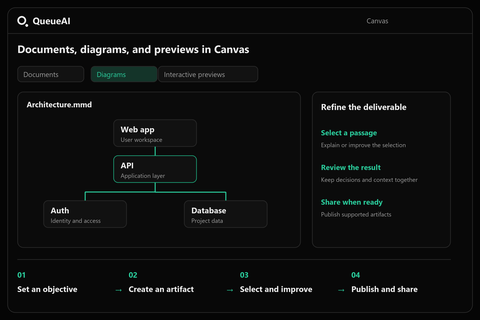
Take a conversation into Canvas and refine the deliverable.