
An AI Canvas for work you can open and refine.
Chat is useful for working through an idea. Canvas gives the result its own surface: a document to edit, a diagram to inspect, or code to preview. Keep the conversation alongside the deliverable as you refine it.
Compare plans and connector access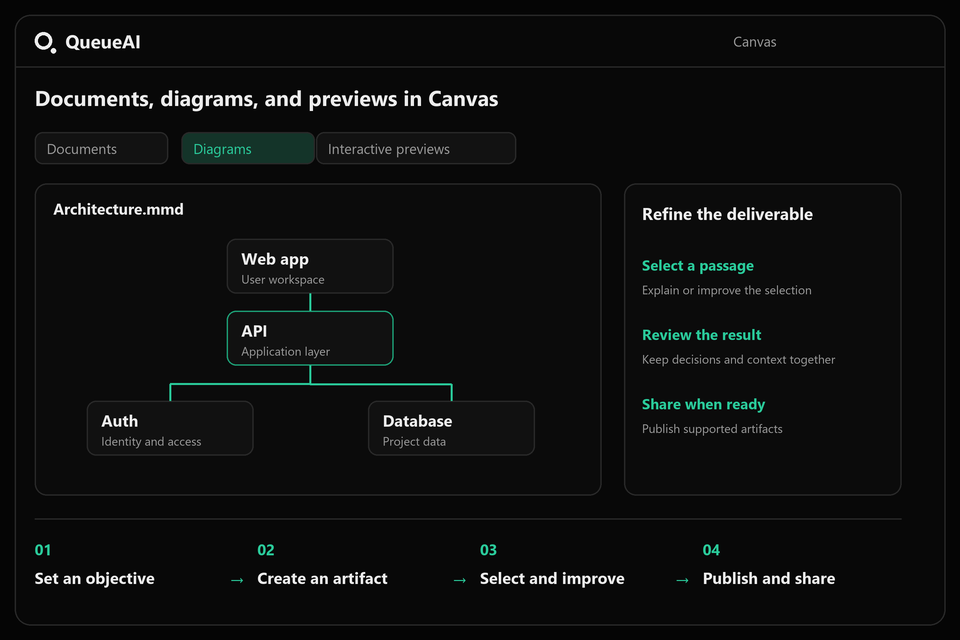
Choose the format that fits the work
- Documents
- Draft project briefs, requirements, research summaries, and other structured writing. Review headings and facts before exporting.
- Diagrams
- Use Mermaid diagrams to explore a workflow or architecture. Check connections, labels, and boundaries against the real system.
- Code
- Inspect generated code as an artifact and request focused revisions. Validate behavior in your development environment.
- Interactive previews
- Preview supported interface artifacts and examine the visible result. Test accessibility, edge cases, and integration separately.
Move from conversation to an artifact
- Name the output format in your objective, such as a Markdown brief or Mermaid architecture diagram.
- Provide the source material, desired audience, and constraints.
- Open the resulting artifact in Canvas, inspect it, and ask for a specific revision.
- Export supported documents or diagrams, or integrate reviewed code in your own project.
Refine one decision at a time
A focused revision is easier to evaluate than a complete rewrite. Ask to shorten the scope section, clarify a decision, or fix a particular interface state. Keep the requirement and its verification method together so you can tell whether the change helped.
For a diagram, start with the major components and then add the details that explain the system. For a document, make the objective and next action easy to locate. For code, keep the requested environment and dependencies explicit.
Know what a preview can prove
A rendered interface shows how the supported artifact looks and behaves inside the preview. It does not prove that a production database is connected, an OAuth flow works, or a payment integration is configured. Check those parts in your actual application.
Canvas outputs can contain mistakes, like any generated draft. Review facts and diagrams, run code tests, and confirm supported export options before relying on the deliverable. Explorer includes 3 saved Canvas sandboxes; paid plans provide more Canvas access.
Try this prompt
Create a Mermaid architecture diagram in Canvas for this application. Use only the components described in my notes. Show the browser, API, database, cache, and external services where applicable. Explain any missing connections as open questions instead of inventing them.
Your prompt opens in the workspace after sign-in. Connectors require Builder or Pro. Nothing is sent to an external app from this page.
Before you use the result
- Check the artifact format and whether the result matches the objective.
- Verify diagram connections and document facts against your sources.
- Test generated code outside the preview before production use.
Common questions
What does QueueAI Canvas support?
Canvas supports documents, diagrams, code, and interactive previews alongside chat. Available export and preview controls depend on the artifact type.
Can I use Canvas with connected apps?
Yes. On Builder or Pro, supported app context can inform the deliverable. Source permissions and connector capabilities still apply.
Can I export a diagram?
Canvas includes a PNG export for Mermaid diagrams. Review the rendered diagram and its labels before sharing it.
Explore another workflow
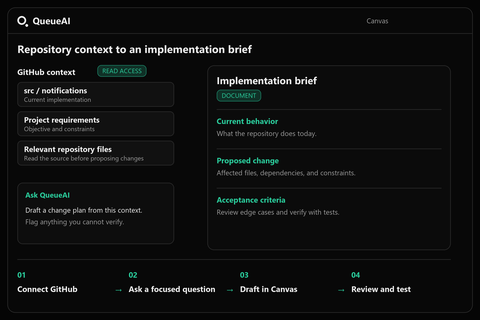
Use repository context to work through requirements, code, and architecture.
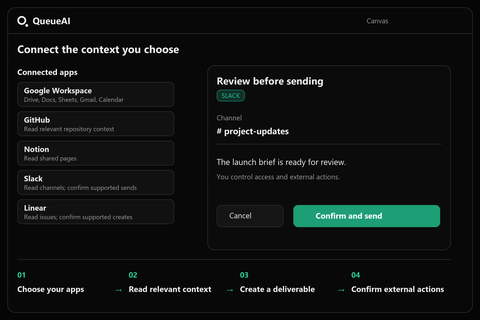
Understand what Google Workspace, GitHub, Notion, Slack, and Linear can do.
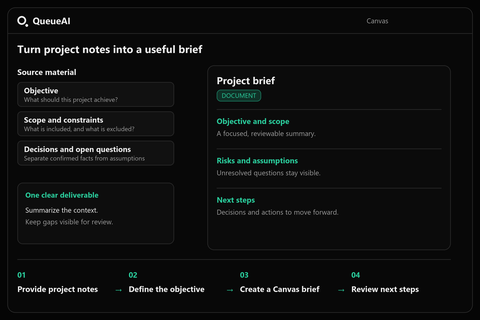
Build a reviewable brief with objectives, scope, risks, and next steps.